In the fast-paced world of sales, every interaction counts. Classic Outlook’s Reply feature, enhanced by Copilot, transforms routine email exchanges into strategic opportunities. It can streamline your communication and boost your sales performance.
Classic Outlook streamlines the process of crafting email replies, making it both powerful and effortless. Whether you’re drafting a quick response to an inquiry, summarizing the key points from a recent meeting, or incorporating product details from your CRM, Classic Outlook ensures your replies are efficient and effective.
In this article we’ll take a look at the Reply options you have in Outlook.
Reply with Standard Prompts
(Always remember to hit Reply/Reply All first in the main email Ribbon, while not required, it’s a best practice)
Make sure Copilot for Sales side car is visible and locate the Key email info card. Scroll down to the bottom of the card and select the down arrow to the right of the Draft an email button.
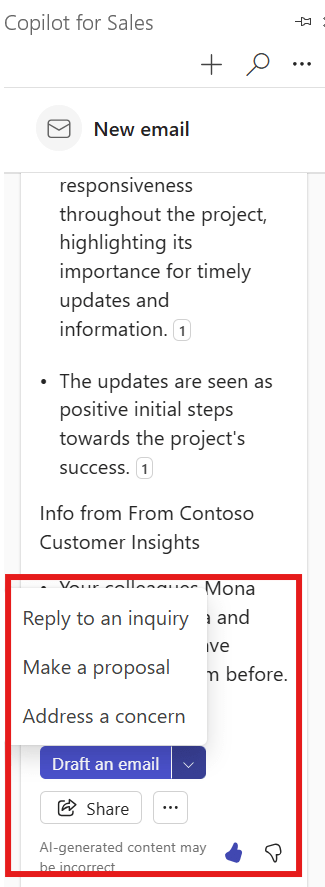
Experiment with some of these prompts and see the draft that gets created. Specifically try the Make a proposal option. You’ll notice that the draft it creates includes information from the Product fields in your CRM.
Reply with Custom Prompts
If you prefer to write your own prompt for your email draft, click on the Draft an email button to access the prompting screen. Once you’ve entered the prompt select Create Draft at the bottom of the sidecar.

You’ll also see the standard prompts if you decide you want to use one of them. There is an additional option on the list called Summarize a sales meeting. Select it and you’ll see that it integrates with Outlook to show meetings from your calendar. It also integrates seamlessly with your Teams recording and transcripts to summarize them for follow-up in the email draft.
Adjust your Draft and Send
Once you’ve created a draft, you have some additional options.
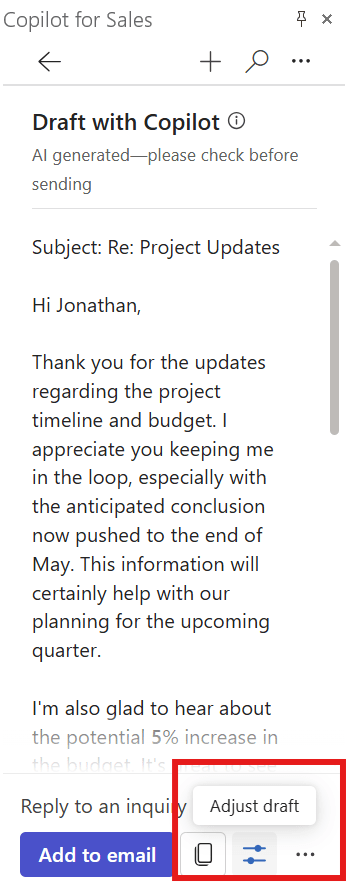
Look for the sliders icon on the bottom right of the card and select it to see different options you have to change your draft.
You can adjust the length and the tone of the email Reply, and even suggest a meeting time that Copilot for Sales has suggested from your calendar details.

Once you have the draft complete select Update and then add the reply to your email.
Conclusion
Copilot for Sales in Classic Outlook empowers users with a range of intelligent reply options that streamline communication and enhance productivity.
Whether you’re crafting a quick response, leveraging AI-generated suggestions, or tailoring replies with contextual insights, Copilot ensures every interaction is efficient and has impact. Embracing these tools can transform the way you engage with your inbox.
 321 Dynamics
Leave a comment