Emails are an integral part of life in sales, but the sheer volume can make it challenging to manage your Inbox and find the crucial information that drives sales forward. With emails, you often need to act quickly.
Imagine if you could save an email and easily connect it to customer information in your CRM? What if you could do take action quickly save hours each month and close deals faster?
Copilot for Sales helps you manage and save emails while drawing context directly from your CRM records. With just a few clicks and a simple search in Outlook, you can quickly save an email and see customer information. This enhances insights, communication, and productivity.
By using the Save Email feature in Copilot for Sales in Outlook, you can save important emails directly to your CRM. Making it easier to manage customer interactions and follow-ups. Users have reported saving 90 minutes a week by automating these routine tasks.
Once you install Copilot for Sales (you may need an assist from you Administrator), it’s easy to save an email and save time. Simply follow the steps below:
Select Copilot for Sales While Reading an Email
While in Outlook identify and select an email from a customer. Once the email is open there a few ways to call Copilot for Sales:
Select See Sales Insights from the banner just above the text of the email
Select the Copilot for Sales icon in the top right of Email message
Once you invoke Copilot for Sales the surface will appear to the right of the email message. At the top of surface you will see the option to Save the email to your CRM (Dynamics 365 or Salesforce)
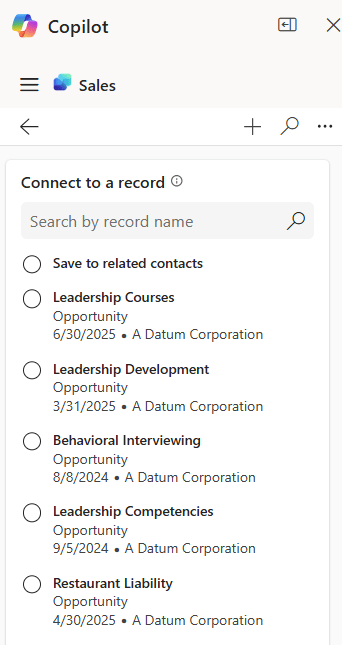
Select the Save button and you will have the option to Connect to a record.
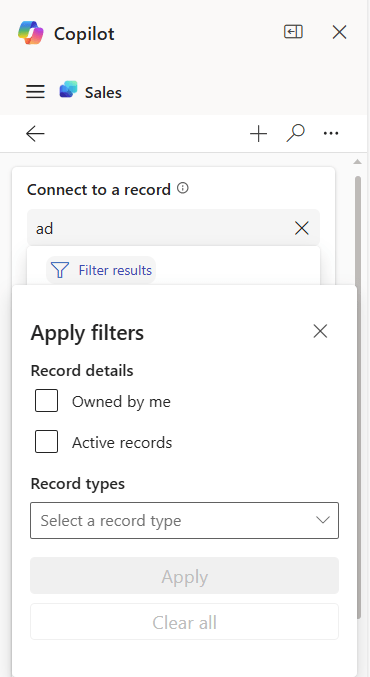
Simply search for a record in the Search field and it will being to filter on your CRM records. By default it will begin to filter on all Entities (Dynamics) and Objects (Salesforce).
Select Filter results for more options like only records you own, only active records, or filter by one Record Type such as an Opportunity or an Account
Once you’ve located the CRM record to which you’d like to save the email, simply select its radio button and click Save in the bottom right. This immediately tracks this email to the record’s timeline in your CRM.
You will also see Copilot for Sales seamlessly bring information from the record right into your Outlook experience, keeping you close to the customer information that helps you sell.
It makes it easy to stay organized and take quick action right within the tools you use daily.
We’ll cover more about the information cards in Copilot for Sales in a later post. Let me know if you have any questions.




 321 Dynamics
Leave a comment